Handling collisions in your game
Most games need to detect and handle collisions between objects. Detecting and handling collisions can be done to make objects stick on platforms and detect collisions between bullets and players or bullets and other objects.
GDevelop provides several different ways to handle collisions. You can detect collisions using Event Editor conditions and actions, or you can use Object behaviors.
Make objects solids: use the "Separate objects" action (good for top-down games, RPG...)

You can use the "Separate objects" action to move objects manually. The "Separate objects" action can also move objects with "forces" or set the object's position.
"Separate objects." This action takes two object names as the argument.
- The first object name is the object moving (the player, enemy, etc.).
- The second object name is an object (or a group of objects) that are solid. For example, these objects can be the walls.
The action will then iterate over all of the objects given. It will ensure that if an object of the first kind is colliding with an object of the second kind, the object will be moved away. This is done using an algorithm called the SAT algorithm.

This action will be launched in every frame. In an event without conditions, the action is already doing the collision checks. Avoid launching this action multiple times. Doing so could reduce game performance.
Detect collisions
Using "Separate objects" is a good way to ensure that your objects can't move into other solid objects. This action checks collisions between objects. For example, if the game object "player" is touching a wall, this action, when used with the condition called "Collision," will trigger damages to the player.
The sequence is important.
- Run the condition called "Collision."
- Add appropriate actions.
- Add the "Separate Objects" action.
After running the "Separate objects" action, objects are moved. Collisions between objects will no longer be able to be checked.
You can find usage of these conditions and actions in the examples:
Platformer games: use the Platformer character and Platform behaviors
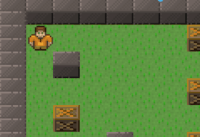
If you're making a platformer game, it's a good idea to use the "Platformer character" behavior. It's a ready-made platform game engine that is highly customizable. The "Platformer character" behavior handles the gravity and the collisions with the platforms.
Detect collisions in a platformer game?
In a platformer game with the "Platformer character" behavior, collisions with platforms are handled for you.
- You can still use the Collision condition to check for collisions between an object and other objects (for example, between the player and enemies) and react accordingly.
- You can use the "Is on Floor" condition to check if an object is on a platform.

Detect objects within a range
The Distance between two objects condition checks whether two objects are within a specified pixel distance of each other, without requiring them to overlap. Common uses include:
- Triggering an enemy detection or alert when a player enters a radius
- Creating a collection radius so items attract towards the player before touching
- Activating proximity-based interactions or traps
Check if a point is inside an object
The Point inside object condition tests whether a specific X/Y coordinate falls within an object's collision mask. This is more precise than standard click events when working with non-rectangular objects. Common uses include:
- Detecting whether a mouse cursor or touch position landed on an irregularly shaped object
- Verifying that a position is clear before spawning or placing a new object
Ray casting
The Raycast condition casts a ray from a starting position in a given direction and picks any objects the ray intersects. You can store the X/Y coordinates of the hit point in result variables for further actions. Common applications include:
- Line-of-sight checks (can an enemy see the player through obstacles?)
- Instant hit detection for shooting mechanics without spawning a moving bullet object
- Ground or surface sensing directly below or in front of an object
Use Raycast to position to target a specific X/Y endpoint instead of specifying an angle and maximum distance.
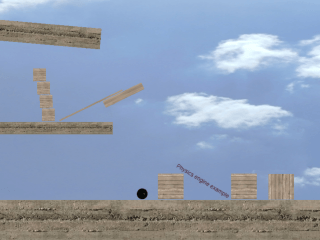
Game with physics? Use the Physics 2 behavior
Use the Physics 2 behavior for realistic physical simulation in your game. Physics 2 is the current, recommended version. Attach it to your objects and they will follow the laws of physics — bouncing balls, falling objects, swinging pendulums, and more. It supports a range of collision shapes (Box, Circle, Edge, and custom Polygon) as well as collision filtering.
Configure walls and solid objects that should not move as Static bodies.
Note
The older Physics behavior is deprecated. New projects should use Physics 2.
Detect collisions with the Physics 2 behavior
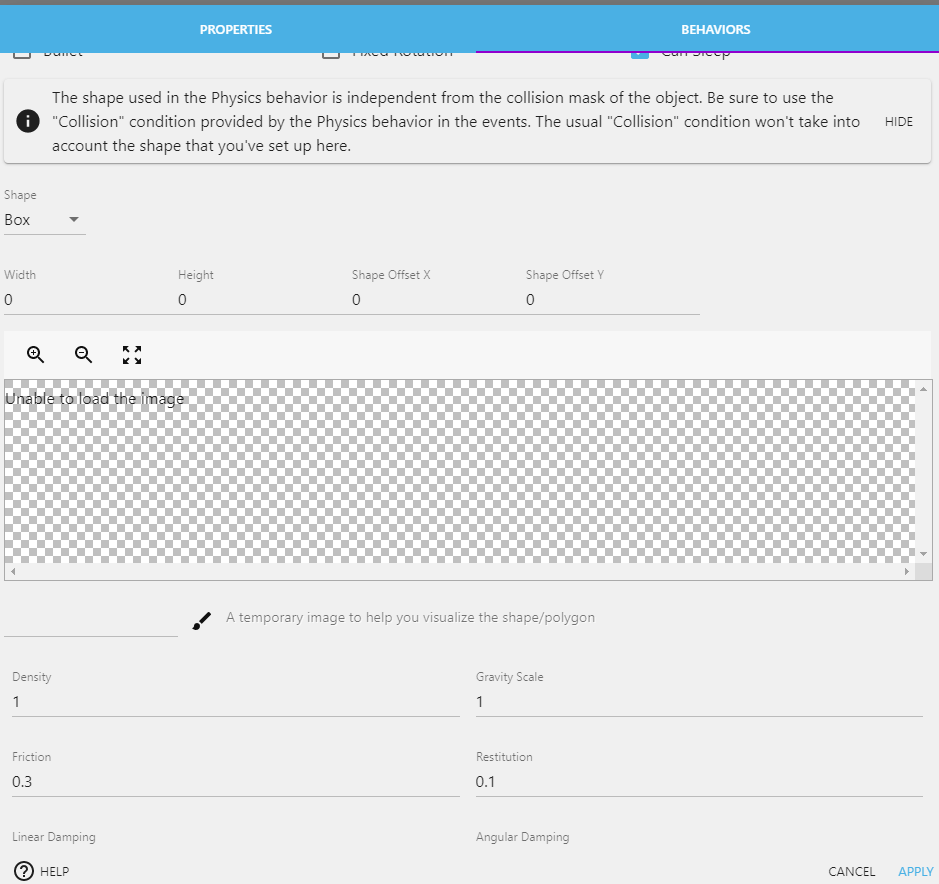
When using the Physics 2 behavior, do not use the Collision condition from the Features for all objects category. The physics engine manages all collisions internally, and the standard Collision condition will not correctly detect contact between physics bodies.
Instead, use the Collision condition inside the Physics 2 behavior category, which properly queries the physics engine.
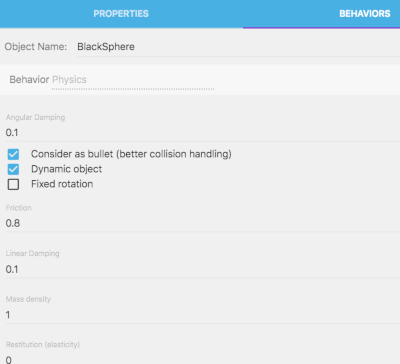
Additionally, objects with the Physics 2 behavior use the collision shape defined on the BEHAVIORS tab (Box, Circle, Edge, or Polygon), not the object's regular Collision Mask. By default this is a box matching the object's full size. Adjust the shape in the BEHAVIORS tab as needed to fit the visual appearance of the object.